Saturday, January 5, 2008

See How Google View your website & its content

If Google understand your website and its content very well, be sure to get tons of traffic from Google Search. Here ‘understand’ is referred to how well your website is indexed by Google. In case your website or weblog is indexed well, your weblinks will get preference which will result in more Google Juice.

But how to check if Google know about your website? Well this is really easy and can be done using Google Search itself. Check out the above screenshot and the following procedure:

Open Google Search and type: “info:www.yourwebsite.com”(without quotes, enter your website URL in place of ‘yourwebsite’) and hit the ‘Enter’. This will provide you following result in terms of - Google’s cache, similar to, link to, from the site and contain the term. Here is more about what is being displayed in results.
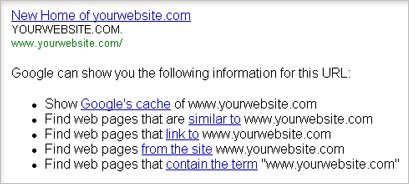
Google’s Cache show your homepage is seen by Google at that given moment. It generally shows an older webpage as caching takes some time. Similar to, shows weblinks or websites that have similar content or topics being discussed.

Link to show webpages linking the website in focus. While from the site show all the pages that have been indexed by Google (important!). Contain the term shows all those weblinks that have same term (website name) somewhere.

By using above Google command you can surely know more about how Google is viewing your website and its content. In case results are disappointing - don’t be dis-heartened, submit your website to Google using Google Webmaster Tools to have a brighter picture in near future.

Source

Friday, January 4, 2008

How the Internet works (explained with tennis balls)

Isn't it easy to get confused about nameservers, registrars, domain names, ICANN, whois and so forth? The underlying concepts for building a resilient distributed network might not be too tricky, but as soon as you actually start making that network resilient, distributed and public, it can get mighty complicated.

To make it all simple, we have put together a video that explains how navigating to a URL works, behind the scenes.

To make it all even more simple, we've done it with tennis balls. Everyone understands tennis balls.


If you can't be bothered to watch the whole video, here's the basic sequence of events (without the tennis balls, though, so you might want to go watch the vid). If we want to get the homepage for www.google.com:

* First, the PC sends a request to ICANN in order to find the registrar for Google.com.
* The answer comes back that we need to be talking to the server at whois.enom.com
* Behind the scenes, the PC then needs to find out which nameservers can tell where www.google.com is hosted (whois -h whois.enom.com google.com)
* Once the PC discovers that the answer is ns1.google.com (among others) - with an IP address of 216.239.32.10, we can then dig 216.239.32.10 www.google.com to find out which host we should approach for the web page
* The answer is 64.233.187.99 (among others - I think they might do a bit of load-balancing!).
* This means we now have all the information required to send a GET request to that IP address and receive back the information we need to display the page

check-blogwebsite-look-design-in-different-browsers


More and more people are using browser other than Internet Explorer. Firefox is the front runner in non-Microsoft browser. As a blogger or webmaster it is very important that your blog/site has consistent look in all browsers.

Unfortunately, you have to put in some extra tags to achieve that, in this specially true in case of look in Internet Explorer and Firefox. With so many browser present, one cannot install all of them just to check the look & design.

Possible solution is Browsershots. Using this online service, you can preview how your site/blog looks in different browsers. Output is provided in the form of image screenshots.

Procedure is very simple: Enter the URL of blog or website you wish to preview, then select the browser from the list of different versions of Firebird, Firefox, Konqueror, Navigator, MSIE, Firefox and Safari. Then click on submit button to get the screenshots of your site/blog in different browsers.

Browsershots: Homepage - Downloads

It is a free open-source online service created by Johann C. Rocholl. When you submit your web address, it will be added to the job queue. A number of distributed computers will open your website in their browser. Then they will make screenshots and upload them to the central server here. Hmm…. interesting!

5 Free Tools to check age of any domain name

Do you know the age of google.com? Besides, are you aware of age of any domain that you own? Well, even if you don’t recall - no worries.

There are number of online tools to check the age of any domain name. Most of them are free and takes under a minute to provide you the result.

Back to the original question, age of google.com?Strangely most online tools show little variation in the age result of google.com.

However most of them show age of Google.com in the time span of 9-10 years. Here are 5 Domain Age Check Tools and their results for google.com:

1. CongLand Domain age checker


2. WebConfs Domain Age Tool


3. SEOchat Domain Age Tool


4. iWebtool Domian Check


5. SEOlogs Domain Age Check


Different age with different tools. Nothing is perfect in this world, what say?

Source:

5 Tools to Search Meaningful Domain Names Quickly

Thinking of starting a new website or blog? If yes, then besides finalizing the concept of the website one needs to acquire relevant domain name.

Having a domain name that is In-sync with the concept and content of website is very important. Besides being related, try to find a domain that is short and most importantly easy to remember.

Grab a dot com domain if available, dot net, dot org and further can also be considered. Also avoid mix of numbers, dashes and alphabets in a domain name. Yeah, there are so many things to take care off while checking out domain name for your website. Here are five online tools that will surely make life easy in search for a domain name:

1. DomainsBot - For me this is the best option. Even ‘tothepc’ was searched using this web service. Just type the keyword and wait. You don’t even have to hit the search button. For advance option do hit the search button!

2. MakeWords - Another very handy web service to search for domains. You just need to type keyword in ‘Advanced Keyword Search’ and results will appear at the lower half of the screen. Very easy to use and effective. It also has built-in synonym finder to search for domains with similar words.

3. Dyyo - This web service is specific to search of four letter domain names. Four letter domains are one of the most sought after domain names for simple reason of they being just 4 letters. It also provide list of 4 letter domains up for grabs.

4. PickyDomains - It unites 17 domain namers from United States, Canada, Russia, UK, Australia and New Zealand, all with extensive experience of picking great domain names. You provide them your domain requirement and deposit $50. In case you do not like domain name options at offer, they refund the money.

5. Nameboy - It helps you find creative domain names. Enter the primary and secondary words in the desired domain name and you will get the options available. Surely worth a try in your quest to search for an exclusive and relevant domain name.

Hope above tools will help you fasten the process of getting a meningful and relevant domain name. In case you find something unique and launch a website or blog, please do leave your URL in comment below!

Source :